Archive for November, 2009

HDR Tip #2

November 27th, 2009

These HDR tips resulted from a conversation with my good friend Andreas Waldeck, an HDR expert who happens to work with HDRSoft, the publisher of the premier HDR software Photomatix Pro.

In Tip #1 we talked about the correct way to capture multiple images HDR images in the field.  See HDR Tip #1.

Now I want to start discussing the processing of these image files.  The software tools we’ll discuss are Lightroom, Photomatix and, to a much lesser extent, Photoshop.  So let’s get started.

This next tip is one of those that is so obvious once you know it but one that doesn’t jump out at you.  It has to do with Develop settings in Lightroom.  The assumption is you’re shooting RAW images and not JPEGS.  This really doesn’t apply  to JPEGs, only RAW.

When you import images into Lightroom there are a couple of default Develop settings that make the image look good but actually work against you in Photomatix.  The first of these is Blacks.  Lightroom defaults this to +5.  But often at this setting you’ll have some shadow clipping and even if you don’t you’re giving up shadow detail.

lightroom_settings_blacks Notice that the left tail of the histogram climbs the left wall and the triangle in the upper left is bright, indicating black clipping.

As we discussed in Tip #1, one of the things you really want to pay attention to in HDR is your shadows.  You want to give them a full exposure so that you capture all the detail you could ever want without noise.  Lightroom’s default of Blacks +5 adds blacks back in where you don’t really want them.  So the first part of Tip #2 is to set Blacks to 0.

The other Lightroom default that works against you is hidden away under Tone Curves.  It’s the control at the bottom – Point Curve:.  This control makes some modest yet very effective changes to the curve.  Again, it makes the image look great but it’s not so great for HDR.

The default value is Medium Contrast.  This introduces a pleasing amount of contrast to the image by lowering the Shadows part of the curve just a little and raising the Highlights part an equally small amount.  The other two settings are Strong Contrast which increases the contrast changes even more and Linear which makes no changes to the curve at all; that is, it is perfectly straight.

lightroom_settings_point_curveBoth of the contrast settings darken the shadows a bit so we want to change the setting to Linear.

You might want to make a few other tweaks to one or more or the images.  For example, maybe you didn’t underexpose your dark image quite enough and you feel the histogram tail extends too far to the right.  If that’s the case, use Recovery to pull it back some.  However, this is not at all desirable and should only be used in an emergency.

Likewise, with the overexposed image you may still feel the left tail of the histogram is too close to the left.  You can use Fill Light to open that up a little.  This too is highly undesirable and should only be used in emergencies.  The best solution is to make sure your exposures are correct while still in the field.

I like the Blacks and Point Curve settings so much I apply them to all my images, whether they’re intended for HDR or not.

One last thought is you might want to create a preset with these settings.  Lightroom can run the preset for you every time you import files.  If you choose to create a preset you can set some other adjustments at the same time.  Here’s a summary.

  • Exposure, Recovery, Fill Light and Blacks should all be set to zero.
  • Brightness should be set to the default (50)
  • Contrast should be left at the default (25) although some advocate setting it to zero.
  • Clarity, Vibrance and Saturation should be left at their defaults (0).
  • Point Curve set to Linear.

Some Lightroom adjustments that are safe to change are:

  • White Balance (color  temperature and tint)
  • Noise Reduction
  • Chromatic Aberration

In fact, if there are chromatic aberration problems with the image it’s best to correct this before you import into Photomatix.

Now that your RAW image files are ready we’re ready for the next tip.

HDR is one of the more popular topics we cover in our photography workshops.  The advantage is we are able to cover it in real-life situations.  Come join us.

To see more of my photographs click here.

Become a fan on Facebook and follow along.

I would like your opinion on photography workshops.  Please take a short survey.

Tags: , , , ,
Posted in Articles, How To Articles | Comments (1)

Why I Attend Workshops

November 27th, 2009

I’m a professional nature photographer.  I not only take and sell photographs  but also conduct workshops in some beautiful locations around our world.  Admittedly I’m relatively new to the business and am not one of the big names of outdoor photography – yet.  But I have a loyal following that continues to grow.

Like I said, I lead workshops, both on my own and teamed up with other great photographers.  I believe my workshops have a lot to offer photographers of all skill levels from novices and amateurs to professionals.  And our attendees confirm that with their comments. 

First of all, we get to great locations and we photograph them in the best light.  Location and light are the two most critical elements for exceptional outdoor photography.  

Second, we provide lots of one-on-one attention.  The primary reason most attendees sign up for workshops is they want to become better photographers.  So we really focus on working individually with each photographer on the areas in which they want (and need) to grow.  I say ‘need’ because often the attendees don’t have a clear idea of what areas to focus on and we can help with that.

Third, my partners and I have our own unique personal styles of photography that we share with our attendees, both overtly and in more subtle ways.  If an attendee knows our work, presumably they like it and may want to learn how to do what we do for themselves.

So, with all that by way of introduction, that’s why I attend workshops.  I can photograph unfamiliar areas of our earth with someone who is intimate with the location, its best views and light.  Second, I may feel pretty comfortable with my technical and creative skills but, let’s face it, there’s always more to learn.  Happily, it’s a never ending process.  Thirdly, the workshop instructor’s personal style is just that – personal, unique to that individual.  Working with them for three to five days is a wonderful way to absorb some of their magic and stretch my own personal style.  After all, simply put, our personal styles are our means by which we express yourselves through our art.  It is something that is growing all the time.  Working with other skilled photographers just helps it grow faster.

To sum it all up, life is too short and there’s too much to learn.  I could approach photography on a do-it-yourself basis and grow by trial and error.  And while I never stop exploring and discovering new things on my own, it’s slow.  Or I can accelerate the learning process and work with other photographers whom I admire.  They have a lot to offer and workshops with them gives me the chance to soak up as much as I possibly can in a short, concentrated period of time.  And, I get some great photographs.

Join me on an upcoming workshop.

To see more of my photographs click here.

Become a fan on Facebook and follow along.

Tags: , , , ,
Posted in Articles, How To Articles, Journal, Workshops | Comments (0)

Driving through the Virgin River Gorge Late at Night

November 25th, 2009

The car effortlessly follows the graceful curves of the road. I sit, relaxed, tranquil, at peace, hands resting gently on the steering wheel, more a passenger, an observer. The car, the road, the deep gorge, the gibbous moon overhead, the moonlight reflecting from the river below, the driver – all are in blissful harmony. The pavement with its stripes and multi-colored retreating spots of light looms out of the darkness, dim in the distance and growing in intensity as it approaches, becomes clear for a brief moment and then disappears underneath me into nothingness, eternity. I feel as though I have swallowed it up, absorbed the whole intimate scene into my body, fusing it into the oneness I feel.

Tags: , , ,
Posted in Journal | Comments (0)

Photography and Art

November 22nd, 2009

I had an interesting experience at the Encinitas Street Faire this past  year.  Very often people will enter my booth, look at my photographs and turn to me and ask, “Are you the photographer?”  My answer is always, “Yes I am.”

But on this weekend a woman asked, “Are you the artist.”

I was honored and told her so.  So often the relationship between photography and art is a tenuous one in many peoples’ minds.  These are the people that ask if the colors are real or if I manipulate my photographs.  But an artist by definition would manipulate a photograph.  Why?  Well, for several reasons.

Art is communication and artists have something to say.  A work of art carries the personal stamp of the artist.  The artist’s personal style comes through.  The stronger the artist’s personal style is, the more clearly it shows in her or his art.

Art is interpretation.  We think of art as being a creative process.  Landscape art is challenging because it is difficult to visit an iconic location and produce a work that says something new about it.  And isn’t that an important aspect of creativity – saying something new about familiar things?  But a successful work of art does just that, provides a fresh look as we see something familiar through the artist’s eyes.

I like to explore this aspect of photography in my workshops, providing insight into the artistic process and how it applies to photographers.

Photography can be so many things that sometimes we lose sight of it as a powerful medium for artistic expression.  And clearly, not all photography is art.  But to the photographer artist, photography is an eloquent medium.

Join us on one of our photography workshops for personal attention and great photogrpahy.

To see more of my work, click here.

Join us on Facebook and become a fan.

Tags: , , ,
Posted in Journal, Photographer as Artist | Comments (0)

Inspiring Quote

November 22nd, 2009

Perpetual optimism is a force multiplier. ~ Colen Powell

Tags: ,
Posted in Journal, Quotes | Comments (0)

HDR Tip #1

November 21st, 2009

I shoot a lot of HDR.  That’s where you take multiple images at different exposures so that you capture the full dynamic range of the scene in front of you.  Many people consider HDR to be unnatural and you can definitely get a surreal effect.  But HDR is the only way you can capture certain challenging scenes and make the results look like what you see, not what your camera sees.

I had a talk with my good friend Andreas Waldeck who works for HDRsoft, the creators of Photomatix.  This is the premier software for doing HDR.  Andreas shared some things with me that were real eye-openers and I’d like to pass them along to you in a series of HDR Tips.  So let’s get started with the first tip.

This tip has nothing to do with Photomatix or any HDR software for that matter.  But it’s probably the most important tip of all.  It applies to when you capture your images in the field.  As with all photography, the exposure is critical and it’s the same with HDR.  But this time there’s not a single exposure that you have to get right.  There are multiple exposures that, taken together, all have to be right.

The aim of HDR is to capture the entire dynamic range and then some.  Those last three words, “and then some” are very important.  The histogram is the key to getting the proper number of exposures and the proper range.  You will have an underexposed image that captures the highlights and an overexposed image that captures the shadows. In between you will generally have one or more exposures.

The trick is to get the underexposed image underexposed enough and the overexposed image overexposed enough.  And the histogram is the best tool to make sure you’re getting what you need.

The underexposed image should be underexposed enough so that there is plenty of room between the right tail of the histogram and the right edge.

histogram_underexposedThe example above is about the  minimum clearance I like to see.  I’d actually like a bit more.  A good rule of thumb is for the right tail of the histogram to end about 20% short of the right edge.

This is just the luminance histogram.  You also need to be sensitive to the RGB histograms.  Your  luminance histogram may look like you have a comfortable margin but your RGB histogram may show that you have clipping in one of the channels.  If that’s the case you need to underexpose even more.  You don’t want clipping in any of the RGB channels.  I find the red channel particularly problematical, especially photographing all the beautiful red rocks in the American Southwest.  Blue clipping can be tolerated sometimes, especially if it is coming from the sky.  There’s no detail in the sky.  But when the red clipping comes from the rocks you’re loosing detail in the most important channel.  So I always make sure the RGB histogram is displayed on the LCD and check it after every exposure, especially when shooting HDR.

The considerations are a bit different when evaluating the overexposed histogram.  In this case the luminance histogram tells the whole story.

histogram_overexposedI follow the same rule of thumb; that is, I like the left tail of the histogram to be about 20% from the left edge.  This example is find but a little more clearance would be just a bit better.

You really want a full exposure in your shadows.  This  will guarantee as much detail as you will ever want without any noise.

If you really want to be safe, spot meter the brightest highlight in your scene.  This becomes the underexposure setting.  Then spot meter the darkest shadow in your  scene.  This  becomes your overexposure setting.  The next question to resolve is how many exposures you will need between the overexposed and underexposed settings.  Photomatix suggests intervals of 2 stops.  So if the overexposed exposure is 1/8 at f/11 and the underexposed exposure is 1/500 at f/11, the entire dynamic range is 6 stops.  If your exposure interval is 2 stops you would take the following exposures (all at f/11) – 1/8, 1/30, 1/120, 1/500 or four exposures.

Many experienced photographers advocate an exposure interval of 1 1/3 stops instead of 2.  This would give you proportionately more exposures.  I personally use 1 1/3 stops.

There are a few more quick tips for shooting in the field.

  • Shoot aperture priority or manual.  If you shoot manual, vary the shutter speed, not the f/stop.
  • Shoot from a tripod
  • If your camera supports 3, 5 and even 7 exposures, set it up to automatically take the required number.  If it doesn’t than carefully adjust the exposure manually for each shot (again, on a tripod).

That’s it for the tip #1.  Contunue with HDR Tip #2 where I discuss preparing RAW images for Photomatix in Lightroom.

Here are three articles I’ve written in the past about HDR that provide a bit more insight into the theory and practice behind this technique.

High Dynamic Range #1

High Dynamic Range #2

High Dynamic Range #3

We work on HDR in our workshops where you can get real world hands-on experience with this powerful technique.  Join me on one of them.

To see more of my photographs click here.

Become a fan on Facebook and follow along.

Tags: , , , , ,
Posted in Articles, How To Articles | Comments (1)

Epson 4800 Tip

November 15th, 2009

I have an Epson Stylus Pro 4800 printer that I basically love.  Having a high quality printer like the Epson really unleashed my creative potential by giving me the ability to fine tune my photographs.  Sending proofs off to labs and even waiting only a couple of days to get them back (like some of the better labs do) just wasn’t working out.  Realistically, I could only do a couple of proofs.  But with my own printer I can run scores of proofs if I need to.

There is one thing about the Epson that’s been bugging me though.  I have nozzle clogging problems.  It’s from two things – the relatively dry atmosphere here in Southern California and the fact that I don’t print every day.  It gets so bad that I would sometimes have to spend an hour repeating the nozzle check and head clean before I could start printing.  It wasn’t fun.

But last weekend I heard a tip from two people.  Musical instruments, especially the kind made from wood, suffer from the wood drying out in low humidity conditions.  And that affects the quality of the sound.  So musicians purchase a humidifier device to put in their instrument cases.  It maintains the humidity inside the case at an optimum level which keeps their instrument sounding its best.

The suggestion was to purchase one of these and place it inside the 4800.  Well, the advice made total sense but I took a different tack.  We had a Starbuck’s shot glass sitting around.  I took a kitchen sponge and cut it into four strips.  Two of these fit perfectly in the shot glass.  Moisten the sponges, insert them in the glass, add a little extra water (not too much), set it inside the printer way out of the way where the print head wont hit it, and cross fingers.  After one day I  ran a nozzle check.  Wow, it was almost perfect, good enough to try a print.  I printed a proof and it was just great.

Since then I’ve printed more and it’s working perfectly.  I check the water level every other day or so and am amazed at how quickly it goes down.

So, while time will tell, it seems the nozzle clogging problem may be solved.  And I don’t have go to through the onerous chore of unclogging nozzles before I can print.  I’m cranking out proofs and feeling productive and creative again.  I’m a happy camper.

I would like your opinion.  Please take a short survey.

Join me on an upcoming workshop.

To see more of my photographs click here.

Become a fan on Facebook and follow along.

Tags: , , , , ,
Posted in Articles, Journal | Comments (0)

Composition – Rule of Thirds

November 13th, 2009

There’s a simple compositional technique you can apply to quickly improve the quality of your pictures.  It’s fun and easy and works in so many situations.  It’s called the “Rule of Thirds,” and it goes a little something like this.

Read the rest of this entry »

Tags: , , , , , , , ,
Posted in Articles, How To Articles | Comments (1)

The Making of a Photograph Part 3 – Photoshop First Round

November 9th, 2009

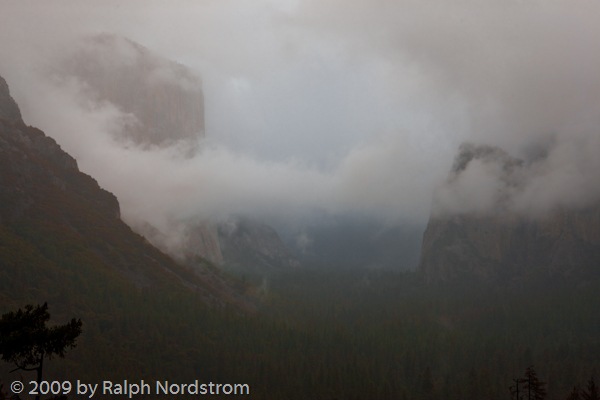
In part one and two of this series I described how I selected the file to work on and explored the potential of the image in Lightroom.  The treatment I ended up with would be exported into Photoshop and we go from there.

Read Part 1

Read Part 2

After trying several approaches particularly with regard to the color of the light I selected one that was very much like the unadjusted file.  The only change was opening up the shadows in the valley floor a bit.
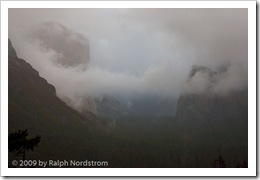
Yosemite_4Now the fun begins.  While Lightroom 2.x supports local adjustments I prefer to do the local adjustments in Photoshop.  I just feel that I have more control in Photoshop.

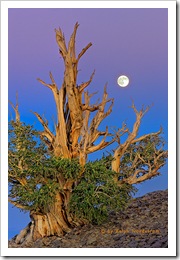
The first thing to deal with is the silhouette of the pint tree in the lower left hand corner.  I used the clone stamp tool to get rid of that.  I have no qualms about removing things that distract from the image.  But I draw the line at adding things.  Someone asked me if I added the moon in Bristlecone Moonrise.  No, I was there and that was the moon.  What’s the point of faking it.  The experience in the field would simply not be the same.  It’s so exciting to take an image like this and think you’ve got it.  But there’s always the nagging doubt in the back of your head wondering if you overlooked something and messed it up.   You never know until you get back at your computer to see what you really have.
bristlecone_moon_2008

But back to Yosemite.  So the pine tree silhouette had to go.  Also, I checked the image for dust spots and only found one or two.  The spot healing brush took care of them.

The next step was to do some local adjustments with Viveza.  It’s a cool tool from Nik Software that allows you to select an area and control brightness, contrast, saturation and more.  The clouds in the upper right needed contrast enhanced a little.  Next a couple of Curves with layer masks helped open up the valley floor even more.  I tried some vignetting on the bottom and really liked the way it funneled the eye into the center of the image where everything was happening.  I didn’t think I’d need any  vignetting for the top corners but tried it anyway and liked that too.  

I made some global adjustments too.  Selective Color helped warm the reds with some yellow, lighten the yellows and darken the blues.  Color Balance also shifted the overall color just a couple points to the yellow.

Sorry I don’t have images of each of the steps along the way but that pretty much finished up the first evening.  The image was starting to get interesting and it was time to sleep on it and come back another day to take a fresh look at it.
Yosemite_1
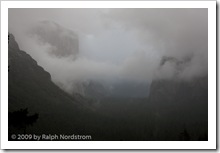
Original Capture
Yosemite_Edit_1
After Photoshop Session 1

Here are the two side-by-side.  It’s starting to take shape.  There’s a little hint of warmth in the clouds and they stand out more from the background.  The valley floor is better defined and the trees stand out a bit more.  There’s actually a subtle feeling of warm light down there.  El Cap and Bridle Vail Falls also are more prominent and their warmer tones contrast more with the overall picture’s coolness.  You can click on the images to enlarge them. 

Even before I fell asleep that night I was thinking of what needed to be done next.  As you work on an image you become satiated to the colors, tonalities and contrast and you can’t tell if they are good or not.  You also get emotionally involved.  So it’s good to stop, get away from it and return another day.  Sometimes when you return you are pleased and other times you say to yourself, “What was I thinking?”  When I get the latter reaction it usually means starting over from the beginning.  We’ll come back to this technique when you get far enough along to start making proofs.

So come back for #4 in this series to see if I  said, “What was I thinking?” or if I picked up from where I left off.

I would really appreciate your opinion.  Please take a short survey.

To see more of my photographs click here.

Join me on an upcoming workshop.

Become a fan on Facebook and follow along.

Tags: , , , , , , ,
Posted in Articles, How To Articles, Journal, Photography as Art | Comments (3)

A Photograph from the 2009 Zion Digital Summit

November 9th, 2009

The 2009 Digital Summit was held in Zion National Park this year.  I’ve attended it every year for the past four years now and always come away with several really good new ideas and techniques.  And also a few good photographs.

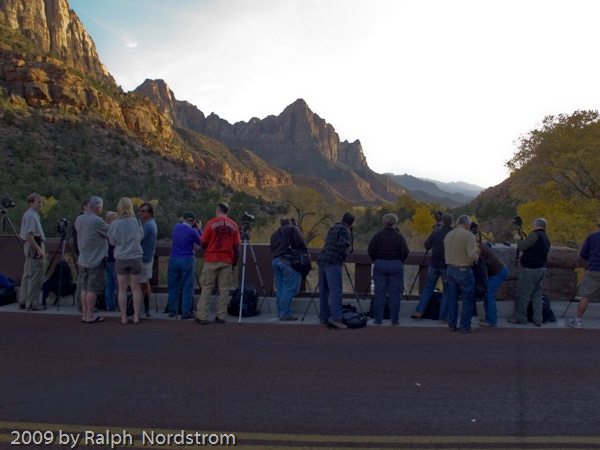
For various reasons I was not overly enthusiastic about the photos this year.  The light failed to materialize for the classic Watchman shot, there are composition issues with the Court of the Patriarch shot and on and on.  But last night I tried something that I’ve been wanting to do for some time now; that being, photograph the calcium deposits at Weeping Rock.

It turned out to be more difficult than I thought but there were actually several good images.  Here is my favorite.

(c) 2009 by Ralph Nordstrom 

I’ll definitely be coming back.

I would appreciate your opinion.  Please take a short survey.

To see more of my photographs click here.

Join me on an upcoming workshop.

Become a fan on Facebook and follow along.

Tags: , , , , ,
Posted in Journal | Comments (0)