Photographic Foundations – Exposure

February 6th, 2010
by doinlight

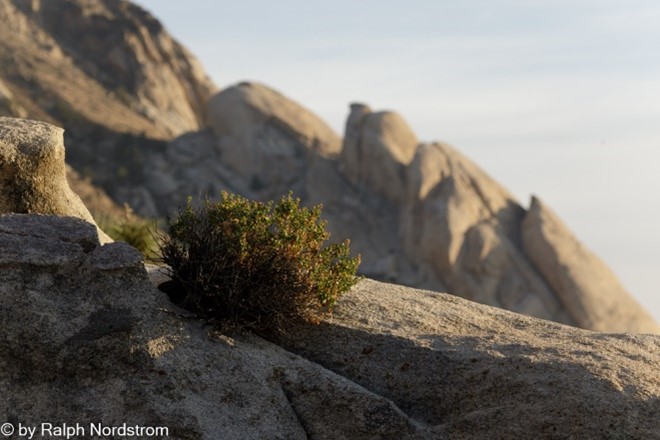
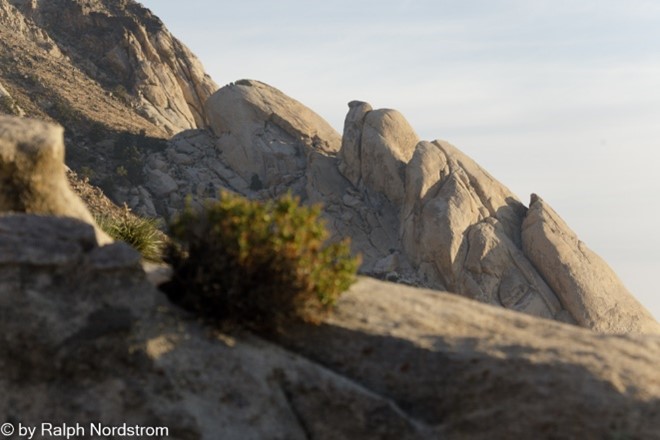
When I’m asked how I get such intense landscape photographs I respond that it all begins with the fundamentals, the photographic foundation.  Given that you have the other elements of a great photograph – a terrific subject and fantastic light – you are still not guaranteed a compelling image if it doesn’t have a solid foundation.

What is the photographic foundation?  It’s two things – a proper exposure and the correct focus.  These are so basic we never talk about them very much but, if you’re like me, you’ve had to walk away from a potentially great image because one or both of these were not carefully attended to in the field.

So let’s talk about exposure.

Read the rest of this entry »

Tags: , , , ,
Posted in Articles, How To Articles | Comments (0)

Photoshop Tutorial – Neutral Grays

February 3rd, 2010
by doinlight

I got a Photoshop question from Lynne in Iowa, a dear friend for many years.  She asked how you could adjust an area of an image to make it pure white.  I gave her a quick email response that outlined a technique but the question really deserves a more detailed and complete answer.  So, Lynne, this is for you and anyone else who encounters this situation in Photoshop.

In this Photoshop tutorial I am going to show you how to make this correction using an adjustment layer.  This technique actually applies to two situations that are encountered quite often – getting neutral blacks and neutral whites.

Let’s take just a moment to describe what is meant by ‘neutral’ blacks or whites.  On our computers, colors are represented by three numbers; e.g., 0,0,0 or 128,128,128 or 255,255,255.  Each of these numbers tells how much red, green and blue are combined together to make a color.  The first set – 0,0,0 – describes pure black – no color.  The last set – 255,255,255 – describes pure white (that’s a little bit of a white lie but not important enough to launch off on to a tangent).  The middle set would be a shade of neutral gray.  Because each of the three numbers is the same, the resulting color is neutral; that is, no color cast  A black with a hint of red might look like this – 5,0,0.

The reason for dipping into this brief technical discussion of computers and colors is because the three numbers that describe a color are at the heart of this technique.  We will adjust the three colors in an area that is supposed to be a neutral shade of gray so that they are all the same.

Let’s use an example.  This is an image I took from my back yard on a morning when the full moon was setting.  There was a beautiful earth shadow and the moon is descending though some thin, pink clouds.  We know the moon should be white and in fact it looks white.  But we will first check to make sure and if not, adjust it to neutral white.

Neutral White Example

The first step is to determine the actual color of the moon.  To do that we will select the Color Sampler Tool from the tool bar.

Color Sampler Tool

A click on the moon leaves a little target that gives us a sample of the color a that spot which is also recorded in the Info box.

Sampled Moon Color

The Info box tells us the color for sample #1 is 239,219,208.  It’s actually a bit red because the red number is higher than both the green and blue numbers.  Well, that’s not all that surprising because the moon is behind a pink cloud.

We’re going to use the Levels adjustment to make the moon neutral white.  We start by adding a Levels adjustment layer and naming it “Levels White Moon.”

Levels Adjustment

One feature of the Levels adjustment that often goes overlooked is the fact that we can also adjust the red, green and blue channels.  And that’s what we’re going to do.  Recall that the red channel had the highest number – 239.  We will adjust the green and blue channels to bring their lower numbers up to red.  We do that by selecting the green and blue channels one by one and sliding the white triangle slider down while watching the numbers in the Info box.  Here, let’s try it.  Select Green from the drop down and start sliding the white slider to the left.

Green Adjustment

First, notice in the Info bar that for color sample point #1 there are two numbers – the original numbers on the left and the adjusted numbers on the right.  The adjusted green number is now the same as the red – 239.  In the Levels dialog the white slider has been reduced from 255 to 234.  That was the amount of adjustment that was required to raise the green number to 239.  We now repeat the process for the blue channel.

Blue Adjustment

You can see by the three numbers in the Info box that our moon is now neutral white.  The red cast has been completely removed.

We should probably point out that this technique is a global adjustment;  that is, the color change is not limited to just the moon but affects the whole image.  To make it a little easier to see, here are the before and after images side-by-side.

neutral_white_0 neutral_white_final
Before After

The after image is a bit cooler than the before.  You may decide that you really like something that is in between the two.  Well, that’s easy enough to do.

In the Layers palate, each adjustment layer has an Opacity setting and by default it is set to 100%.  This means the full effect of the adjustment is applied to the image.  But if you would rather have some fraction of the adjustment applied, say 50%, you can change the Opacity setting.

Opacity Setting

As we stated at the start, this technique can also be used to set neutral blacks.  You just use the Color Sampler Tool to mark a spot in the shadows.  The rest is the same.

Let us know if you find this technique helpful.  Or maybe you have a different way of getting neutral grays.  If so, if you don’t mind sharing it, please do so.

To see more of my photographs click here.

Join me on an upcoming workshop.

Tags: , ,
Posted in Articles, How To Articles | Comments (0)

Death Valley Workshop for 2010

January 24th, 2010
by doinlight

The Death Valley Workshop is less than a month away – February 20-23, 2010 .  This is shaping up to be a fantastic winter.  The storms that rolled through California last week dropped a half inch of rain in Death Valley.  Now, that may not sound like much until you realize that that is half the annual rainfall and just in one week.  With more storms on the way this is shaping up to be a very exciting winter.

Photographers in the Mud

Last year we also encountered some incredible weather and while we can’t promise a lake in Cotton Balls Basin like the picture above, we can anticipate some exciting photo opportunities.  One never knows that’s in store but the more weather, the better the chances of experiencing something amazing.

Zabriskie Point

But we only have six spaces left.  So if you want to be there this winter with a group of fellow photographers, all passionate about landscape photography, this would be the time.

Check us out.  Click this link for more information.

Death Valley Workshop

You won’t want to miss out.  But remember, there are only six spaces left and when they’re gone, there won’t be any more until next year.  So sign up now.

To see more of my photographs click here.

Become a fan on Facebook and follow along.

Devil's Golf Course

Tags: , , , , ,
Posted in Calendar, Workshops | Comments (0)

Work in Progress – Death Valley

January 20th, 2010
by doinlight

I’m getting excited about the upcoming Death Valley photography workshop.  It’s only a month away.  I thought about the photographs I took last year that I hadn’t quite gotten to and decided to revisit them.

So this week I went back and took a look and am excited about what I found.  These aren’t done yet; they haven’t been printed on paper which is often the most time consuming step in the workflow.  But I would like to share them anyway.

Zabriskie Point is one of my absolute favorite places to photograph in Death Valley.  In the past I’ve always liked sunrise the best.  But this last trip I found some treasures at sunset.  Here are two of them.

_A1P5613 and

_A1P5634

They feel very organic to me and when blown up on my monitor I find them fascinating.  The two have totally different feels to them.  The top on has a soft quality of light while the bottom has a massive, dark presence – dark, powerful but not ominous.  I’m very eager to work with them both on paper and see then matted and framed.

So much of the south end of the valley is dominated by salt that I thought some photographs of the different moods of the salt flats would be interesting.

This first one was taken at midday, not a time we photographers generally have our cameras out.  But what really caught me was the soft ridges with gentle folds that stretch across the center of the image contrasted with the jagged salt formations in the foreground and the chaotic mountains behind.

_A1P5611-Edit

A different mood entirely is the salt flats of Devils Golf Course at sunset on what was otherwise a very cloudy day.  Talk about luck.

_A1P5731_2_3

A photographic visit to Death Valley requires a sunrise or sunset on the Mesquite Flats Dunes.  This was a sunrise and it’s not so much about the dunes as it is about the flats themselves and the Panamint Mountains that frame them to the south west.

_A1P5659

I really like the soft quality of the morning light on these strange formations that are found everywhere throughout the dunes.

Golden Canyon must be one of the most visited places in the Valley, judging from all the cars that spill out of the parking lot and park along the road.  So photographing in Golden Canyon can be challenging because of the masses of people.  Unless you go for sunset on an overcast day and not on a weekend.

One of the things about photographing in overcast conditions is you have the most wonderful open shade light.  And Golden Canyon abounds in little vignette images that are really very rich.

_A1P5867-Edit-2

This is an abstract detail of one of the canyon walls.  And I have more where that one came from.

I’m so excited about these that I couldn’t wait to share them, my Death Valley work in progress.

To see more of my photographs click here.

Join me on an upcoming workshop.

Tags: , , , ,
Posted in Journal | Comments (0)

Color Temperature

January 15th, 2010
by doinlight

I spend a lot of time looking out our kitchen window at dawn, watching the way the light changes (usually sipping a cup of Dragonwell green tea).  It’s fascinating to see how one morning changes from the next.  And the best time of the year to see clear, colorful sunrises (and sunsets) is now – December and January.  The air is the clearest and freshest.

One of the things I really enjoy watching is how the color temperature changes from the time the outside just begins to lighten up until the sun is well overhead.  I’ve discussed this in other posts (Dawn).  What I want to do here is very briefly illustrate the point.

So this evening I grabbed this quick shot with my trusty Canon G11.

IMG_1030 This is looking out our back window after the sun has gone down (yes, I photograph twilight too). 

You might say it doesn’t look real.  How could the outside be so blue?  But in fact, this is one of those cases where the camera doesn’t lie.  Given that the sun is way below the horizon and the source of illumination outside is the sky, then the light outside is in fact blue.  Inside we have incandescent lights, the color of which is definitely yellow.  The contrast of standing on the inside with warm light and looking out into cool light is both apparent and striking.

Suffice it to say that color temperature is a quantitative measure of the blueness or redness of the ambient light.  Color temperature is measured in degrees Kelvin and the scale goes opposite of what you would expect.  Low temperatures are red and high temperatures are blue (even though we think of reds as warm and blues as cool).  So the color temperature inside the room may be about 4500 degrees and outside it may be 9000 degrees or more.  We’ll get into this in more detail some other time.

As photographers we can use this understanding of color temperature to our advantage.  As digital photographers we always have the option of setting our white balance to compensate for the color temperature – daylight, cloudy, shade, tungsten, etc.

But we can also use this creatively.  We routinely use the warm light of the ‘golden hour,’ the hour after sunrise and before sunset, to give our images a warm glow.  But we can also use the cool light of dusk.

We don’t usually see the colors because our minds are stronger than our eyes and tell us what the color really should be.  But we can train ourselves to pay attention to what our eyes are telling us and actually see the color.

Give it a try.  With a little practice you’ll be able to see the blue in the shadows.  And you just might decide you like it and leave it in your images instead of correcting it out  because it doesn’t look real.

To see more of my photographs click here.

Join me on an upcoming workshop.

Become a fan on Facebook and follow along.

Tags: , , ,
Posted in Articles, How To Articles | Comments (0)

Color Saturation in Lightroom

January 9th, 2010
by doinlight

Last night we had a beautiful sunset.  The sky was baby blue, the clouds were pink and the horizon was golden.  I couldn’t resist.  So I grabbed my Canon PowerShot G11 and walked over to the neighbor’s front yard where the view is just a bit better.  I composed what I thought was an interesting image and snapped a few.

This morning I uploaded them and got to wondering about color saturation in Adobe Photoshop Lightroom.  I have a technique I’ve used for years to enhance colors but there are a couple of other techniques I thought I’d like to understand better.  The three Lightroom controls are:

  • Saturation
  • Vibrance
  • HSL (the control I use the most)

So, for starters, here’s the original unadjusted image.

sunset_original As you can see, the colors are really quite nice.  But my recollection of the sunset was that they were a little more saturated, more intense.

Read the rest of this entry »

Tags: , , , ,
Posted in Articles, How To Articles | Comments (1)

Photography Workshop in Fascinating Death Valley

January 5th, 2010
by doinlight

Death Valley has so many fantastic locations to shoot.  But it’s not easy to get great photographs.  It all depends on catching the right light.

That’s where it pays to sign up for our workshop.  We know the valley and can get you to the well known and not so well known locations when the light is at its best.

We’re going next month: February 20 – 23, 2010.  It’s an amazing time of the year. 

Come join us.  You’ll be glad you did.  Sign up by January 15 and take advantage of the 10% early bird discount.  Click on the link below for more information.

2010 Death Valley Workshop

© 2005-2009 by Ralph Nordstrom - All Righs Reserved

Tags: , , , ,
Posted in Workshops | Comments (0)

Ten Tips for Exciting Nighttime Photography

January 2nd, 2010
by doinlight

There is a growing interest in a new kind of nighttime photography.  Photographers have been taking photographs of the nighttime sky ever since film was invented.  These photographs were generally long exposures that show beautiful star trails.  But now they are taking clear, sharp images of the stars and planets literally stopped in their tracks.

Astronomers have always been taking photographs of the nighttime sky and their goal has always been to get sharp images of the stars.  To do that they rigged their powerful telescopes with very precise motor drives that slowly turned the telescopes at the same rate as the stars move overhead, effectively holding the stars motionless in the field of view.

But with the advent of digital cameras the notion of photographing the night sky as part of a broader landscape has become increasingly popular.  And it’s not just star trail images that photographers are capturing.  They are capturing spectacular images of the planets, constellations and even the Milky Way over well known features on earth.  Wally Pacholka is one of the best of this new breed of photographers and his work is an outstanding example of this genre of fine art photography.  Check out Wally’s incredible Top Ten Night Sky Images to see what I’m talking about.

Read the rest of this entry »

Tags: , , , ,
Posted in Articles, How To Articles | Comments (1)

New Look for Our Website

December 31st, 2009
by doinlight

The redesign of the Ralph Nordstrom Photography website is complete and it was implemented yesterday.  Feedback so far is positive – clean layout and improved navigation.  Friends reported a couple of glitches which are all fixed now.

Check it out.  I’d be very interested in your feedback.

Tags: ,
Posted in Journal | Comments (0)

Epson 4800 Clogged Nozzles

December 30th, 2009
by doinlight

A while back I wrote a post on the problems I have with my Epson 4800 nozzles clogging.  I don’t print on a regular basis so the printer will sit for days and weeks with nothing going on.  (See Epson 4800 Tip.)

In the original post I talked about putting a damp sponge inside the print area to raise the humidity.  It worked really well but then I was so excited that I did a lot of printing.

But over the Christmas holiday several weeks went by without any printing. And the sponges dried out.  So it was back to the same old dry conditions inside the printer.

Last night I wanted to start printing again so I moistened the sponges.  Then I ran a nozzle check and found the magenta was mostly clogged and the light cyan was totally clogged.

I gave it 24 hours, hoping that the increased humidity would loosen things up.  So, when I ran the nozzle check again today I was a bit disappointed to see that the magenta and light cyan were still very much clogged.  I prepared myself to repeat the ordeal I have gone through so many times in the past.

But here’s where the magic started.  I ran a head clean and then a nozzle check.  I certainly didn’t expect to see a good nozzle check.  But one head clean did the trick!  The nozzle check was perfect.  That’s unprecedented.  I have a ton of printing to do and I’m good to go!

It’s probably worth a few sentences to explain why clogging is a problem with the 4800 and the other Epson Stylus Pro printers.  It’s because they use  pigmented inks.  Most ink jet printers use dyes for the colors.  Dyes are colored molecules that dissolve in the solvent.  But pigments are ground up solids.  They’re very fine powders suspended in the solvents.  So if the solvent evaporates from a nozzle there is a residue of pigment left behind.  That’s what clogs the nozzles.

The big three printer makers – Epson, HP and Canon – are all working hard at resolving this problem and have varying solutions that I don’t want to go into here.  But if you have an older Epson like I do or possibly even a more recent model, this is a good tip to know.

So any hesitation about this technique I may have had  is dispelled.  It really works.  I can recommend it with a great deal of confidence – if you live in a dry area or your Epson sits for days or weeks on end without doing any printing, place a moistened sponge in the chamber with the print head and keep it moist.  It will really help in preventing the nozzles from clogging or, if they do clog, it will help getting then unclogged.

It really works.

To see more of my photographs click here.

Join me on an upcoming workshop.

Become a fan on Facebook and follow along.

Tags: , ,
Posted in Articles, How To Articles | Comments (0)